Technical Questions
1. How do I access my Private Client Portal?
You can access your Private Client Portal through the Login page on the website.
Enter the username and password associated with your account. Your login information is case-sensitive.
If you don’t yet have login information, contact me so we can get your account set up.
2. What if I forget my username or password?
If you forget your password:
- Go to the Login page.
- Select Forgot Password.
- Enter the username associated with your account.
- Follow the instructions provided to reset your password.
If you’ve forgotten both your username and password, contact me with the email address associated with your account so I can help you confirm your login information.
3. Can I change my password?
Yes. Once you’re logged into your Private Client Portal, you can change your password through your profile settings.
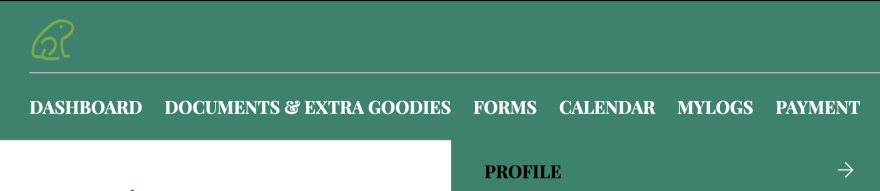
- Log in to your Private Client Portal.
- Select Forms from the top navigation bar.
- Select Profile.
- Use the password option within your profile to update your password.
- Save your changes.
Your password is case-sensitive, so enter it exactly as you want it to be used going forward.
4. What if my username or password isn’t working?
If your login information isn’t being accepted:
- Check that you’re entering your username and password exactly as they were provided.
- Remember that your login information is case-sensitive.
- Type your username and password manually rather than copying and pasting, as extra spaces can sometimes be included.
- If you’re still unable to log in, use the Forgot Password option on the Login page or contact me for support.
5. Which browser should I use for the Private Client Portal?
The Private Client Portal works best with current versions of:
- Google Chrome
- Mozilla Firefox
- Safari on Mac
If you’re having trouble accessing the portal, first make sure your browser is up to date.
6. What should I check if I still can’t log in to the Private Client Portal?
If you’re still unable to log in after checking your username and password, try the following:
- Make sure JavaScript is enabled in your browser.
- Make sure cookies are enabled.
- Temporarily disable any ad blocker or browser extension that may interfere with cookies or scripts.
- Try opening the portal in a different supported browser.
- If you’re using a workplace or other secured network, a firewall or network setting may be interfering with access.
If you’ve tried these steps and still can’t log in, contact me so we can determine the next step.
7. How do I schedule an appointment in the Private Client Portal?
- Log in to your Private Client Portal.
- Select Calendar from the top navigation bar.
- Locate an available date and time that works for you.
- Select the available time and follow the prompts to schedule your appointment.
- Once scheduled, you will receive a confirmation email.
8. How do I cancel or reschedule an existing appointment in the Private Client Portal?
- Log in to your Private Client Portal.
- Select Calendar from the top navigation bar.
- Locate and click on the appointment you want to change.
- Under the appointment details, choose either Cancel or Change Appointment.
- If you choose Cancel Appointment, you’ll be prompted to confirm your choice. Select Cancel to go back or OK to confirm the cancellation.
- If you choose Change Appointment, you’ll be taken to the calendar where you can select a new date and time and update your appointment.
Reminder: Changes or cancellations require at least 24 hours’ notice. Appointments cancelled with less than 24 hours’ notice are considered used, unless we’ve agreed to an exception.
9. How is my information protected in the Private Client Portal?
The Private Client Portal includes several security measures designed to help protect your information:
- Access is protected by a username and password.
- The site uses a VeriSign Security Certificate to help protect information transmitted through the portal.
- Portal pages use a secure HTTPS connection.
